Wireshark RTP Stream to Video Extraction Guide
Overview
This guide demonstrates how to intercept and extract video content from RTSP (Real Time Streaming Protocol) streams using Wireshark. RTSP is commonly used for streaming media applications but lacks encryption by default, making it vulnerable to Man-in-the-Middle (MitM) attacks, unlike its secure counterpart RTSPS.
Understanding the Technology
RTSP vs RTSPS
Understanding the difference between these protocols is crucial for this guide:
Control Layer:
- RTSP (Real Time Streaming Protocol): The unencrypted control protocol operating on port 554. It handles commands like play, pause, and stop, but transmits all information in plaintext
- RTSPS: The secure version of RTSP that encrypts all control commands using TLS/SSL, protecting the session from eavesdropping
Media Transport Layer:
- RTP (Real-time Transport Protocol): The protocol that actually carries the compressed video and audio data over the network. Importantly, RTP is not encrypted by default, even when using RTSPS
- SRTP (Secure Real-time Transport Protocol): The encrypted variant of RTP that adds encryption, authentication, and integrity checks to the media stream
Video Compression:
- H.264: The video codec (compression standard) used to compress video data. This is what gets packaged into RTP packets and is commonly found in IP cameras and streaming applications. Also known as AVC (Advanced Video Coding)
Key Insight: In this guide, we're exploiting unencrypted RTP streams, which remain vulnerable even if the RTSP control layer uses RTSPS encryption.
How RTP Streams Work
To understand how to extract video from RTP streams, you first need to know what an RTP packet contains:
RTP Packet Structure:
- Header: Contains metadata like version, sequence number, timestamp, and synchronization source (SSRC) ID
- Payload Type: A field that identifies what type of data the packet contains (e.g., H.264 video at type 96)
- Payload: The actual compressed video data (H.264 encoded frames or frame fragments)
- Marker Bit: A flag indicating the end of a frame or important boundary
When RTP streams are captured, they must go through a processing workflow:
- Captured from the network: Wireshark intercepts RTP packets on the wire
- Identified by payload type: We determine which codec is being used (H.264, H.265, MJPEG, etc.)
- Reassembled into a playable video format: Fragment packets are reassembled back into complete frames
- Decoded using appropriate codecs: The compressed video data is decompressed into viewable footage
Installation and Setup
Step 1: Configure Wireshark Plugin Directory
- Launch Wireshark with administrative privileges
- Navigate to Help → About Wireshark → Folders
- Locate the entry labeled "Personal Lua Plugins"
- Copy the directory path
- Open the directory
- Create a
pluginsfolder if it doesn't already exist
Step 2: Install the RTP H.264 Extractor Plugin
-
Download the extraction script:
- Visit: Github - h264extractor
- Download
rtp_h264_extractor.lua
-
Install the plugin:
- Copy
rtp_h264_extractor.luato your Personal Lua Plugins folder - Ensure the file has a
.luaextension
- Copy
-
Verify installation:
- Restart Wireshark completely
- Navigate to Help → About Wireshark → Plugins
- Confirm
rtp_h264_extractor.luaappears in the plugin list
Step 3: Enable RTP Protocol Analysis
-
Access protocol settings:
- Go to Analyze → Enabled Protocols
- In the search box, type
rtp
-
Enable all RTP-related protocols:

- Apply settings and close the dialog
Capturing RTP Streams
Step 4: Start Packet Capture
-
Select the network interface:
- Choose the interface connected to your target network
-
Apply the RTP filter:
- In the display filter bar, type:
rtp - Press Enter to apply the filter
- In the display filter bar, type:
-
Begin capturing:
- Start packet capture
- Generate or wait for RTP traffic from your target
Step 5: Identify Payload Type
- Select an RTP packet from the capture
- Expand the packet details:
- Look for the "Real-Time Transport Protocol" section
- Locate the "Payload type" field
- Note the payload type number (e.g., "Unassigned (35)")
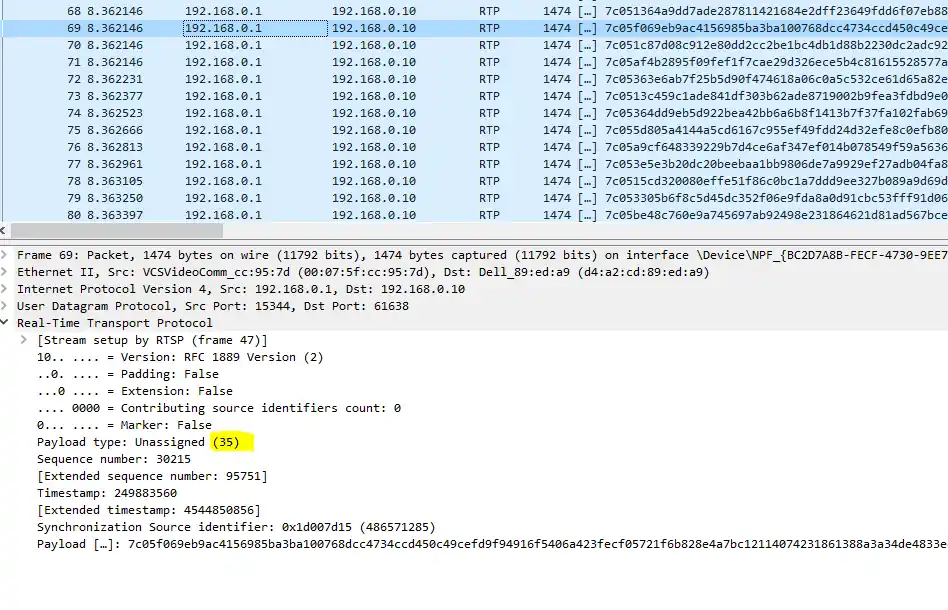
Why is this important?
- Wireshark doesn't automatically recognize proprietary or dynamic payload types
- Manual configuration ensures proper video codec identification
- Different cameras and streams may use different payload type numbers
Step 6: Configure H.264 Payload Mapping
-
Access Wireshark preferences:
- Navigate to Edit → Preferences
- Expand Protocols in the left panel
- Scroll down and select H.264
-
Configure the payload type:
- In the "Dynamic payload types" field, enter your payload number
- Example: If your payload type was 35, enter
35 - Click OK to save
-
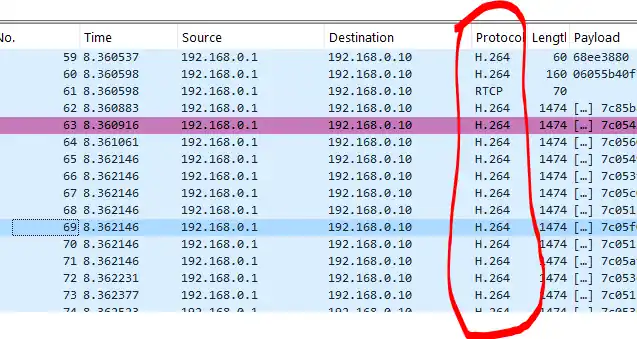
Verify the configuration:
- Return to your packet capture
- RTP packets should now display "H.264" in the Protocol column
Extracting Video Content
Step 7: Extract the Video Stream
- Access the extraction tool:
- Go to Tools → Extract H264 stream from RTP
- A new dialog window will appear
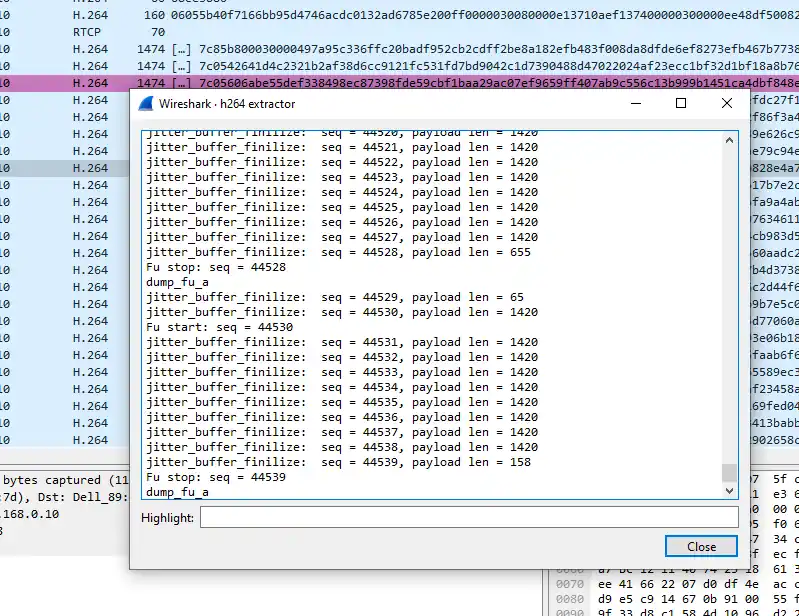
- Locate the extracted video:
- The output path will be displayed upon completion
- Navigate to the specified directory
- Look for files with the
.h264extension
Step 8: Play the Extracted Video
-
Open with VLC Media Player:
- Right-click on the extracted video file
- Select "Open with" → "VLC Media Player"
-
Alternative players:
- FFplay (part of the FFmpeg toolkit)
- Media Player Classic
- Any player supporting H.264 raw streams
Example Output
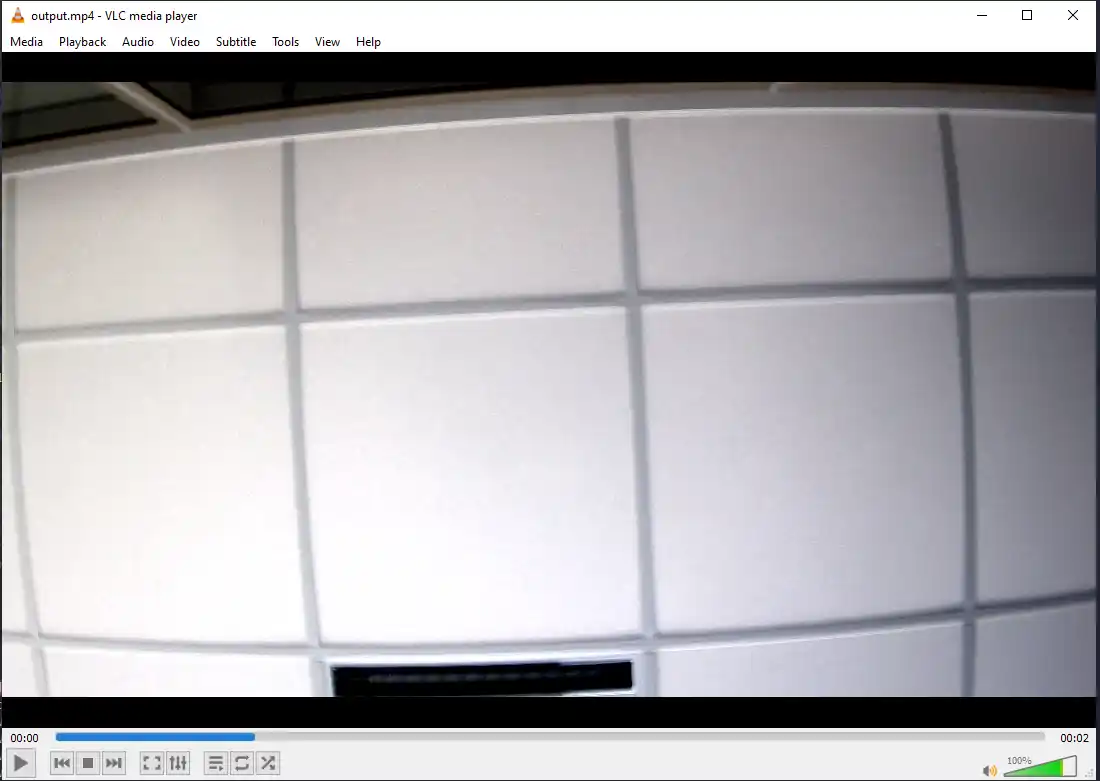
This is a screenshot of the extracted video playback in VLC Media Player.
Troubleshooting
Common Issues and Solutions
Problem: No RTP packets visible
- Solution: Check the network interface selection and ensure you're on the correct network segment
- Solution: Verify that the RTSP stream is active and generating traffic
Problem: Payload type shows as "Unknown"
- Solution: Manually configure the payload type in H.264 preferences
- Solution: Check if the stream uses a different codec (H.265, MJPEG, etc.)
Problem: Extracted video won't play
- Solution: Try different video players
- Solution: Convert using FFmpeg:
ffmpeg -i input.h264 -c copy output.mp4 - Solution: Check if the extraction completed without errors
Problem: Plugin not loading
- Solution: Verify the Lua script is in the correct directory
- Solution: Check file permissions and ensure Wireshark has read access
- Solution: Restart Wireshark as administrator
Related Reading - IP Camera Penetration Testing
If you're interested in extracting video from IP cameras, you should also check out my comprehensive IP Camera Penetration Testing Guide. This guide covers the full scope of camera security testing, including:
- Reconnaissance techniques for discovering cameras on the network
- Vulnerability assessment and exploitation methods
- Network traffic analysis to identify unencrypted streams
- Firmware analysis and hardcoded credential extraction
- Remediation strategies for securing camera deployments
The IP camera pentesting guide pairs perfectly with this RTP extraction guide - while this guide focuses on analyzing captured RTSP/RTP traffic, the camera pentesting guide shows you how to identify and gain access to camera systems in the first place, ultimately allowing you to capture those streams for analysis.
Conclusion
Extracting video from RTP streams using Wireshark is a powerful technique for understanding RTSP traffic vulnerabilities. By following this guide, you can:
- Intercept and analyze unencrypted video streams
- Understand how RTP packets are structured and transported
- Extract raw H.264 video data from network traffic
- Reconstruct playable video files from captured packets
This knowledge is invaluable for security professionals conducting network assessments and identifying insecure media streaming implementations. Always ensure you have proper authorization before capturing and analyzing network traffic.